Updating Program Data in VirtualLab Fusion
🎬 Overview
VirtualLab Fusion relies on a comprehensive set of program data to enable its full functionality. This data includes:
-
Catalogs – The backbone of the Optical Digital Twin Hub. They contain system building blocks (materials, surfaces, coatings, etc.) as well as catalogs for sources, components, and detectors. Keeping these catalogs updated ensures you have access to the latest entries within the Optical Digital Twin Hub.
-
Manual and Documentation – Local access to user guides and technical documentation.
-
Programming Support – External DLLs that support users in developing customized solutions (e.g. custom snippets, detectors, or sources). An update is not essential for basic operation but recommended if you actively develop custom extensions.
-
Additional Resources – Supplementary assets such as predefined tree configurations for optical setups, and themes for layouting and coloring the VirtualLab Fusion user interface.
Keeping your program data up to date is important to benefit from all latest developments – including new Digital Twins. However, an older version of the program data does not prevent VirtualLab Fusion from functioning correctly.
This tutorial covers three update methods:
- Automatic update – The standard, recommended approach when an Internet connection is available
- Enforced update – Forcing a fresh download of all program data, even if the system believes it is current
- Manual update – For computers with no Internet connection or when automatic updates fail due to network issues
📌 Recommendation: The catalogs are the backbone of the Optical Digital Twin Hub. To benefit from the latest Digital Twins, we recommend keeping your program data up to date – especially the catalogs.
🚀 Step-by-Step Tutorial
Step 1: Automatic Update (Standard Method)
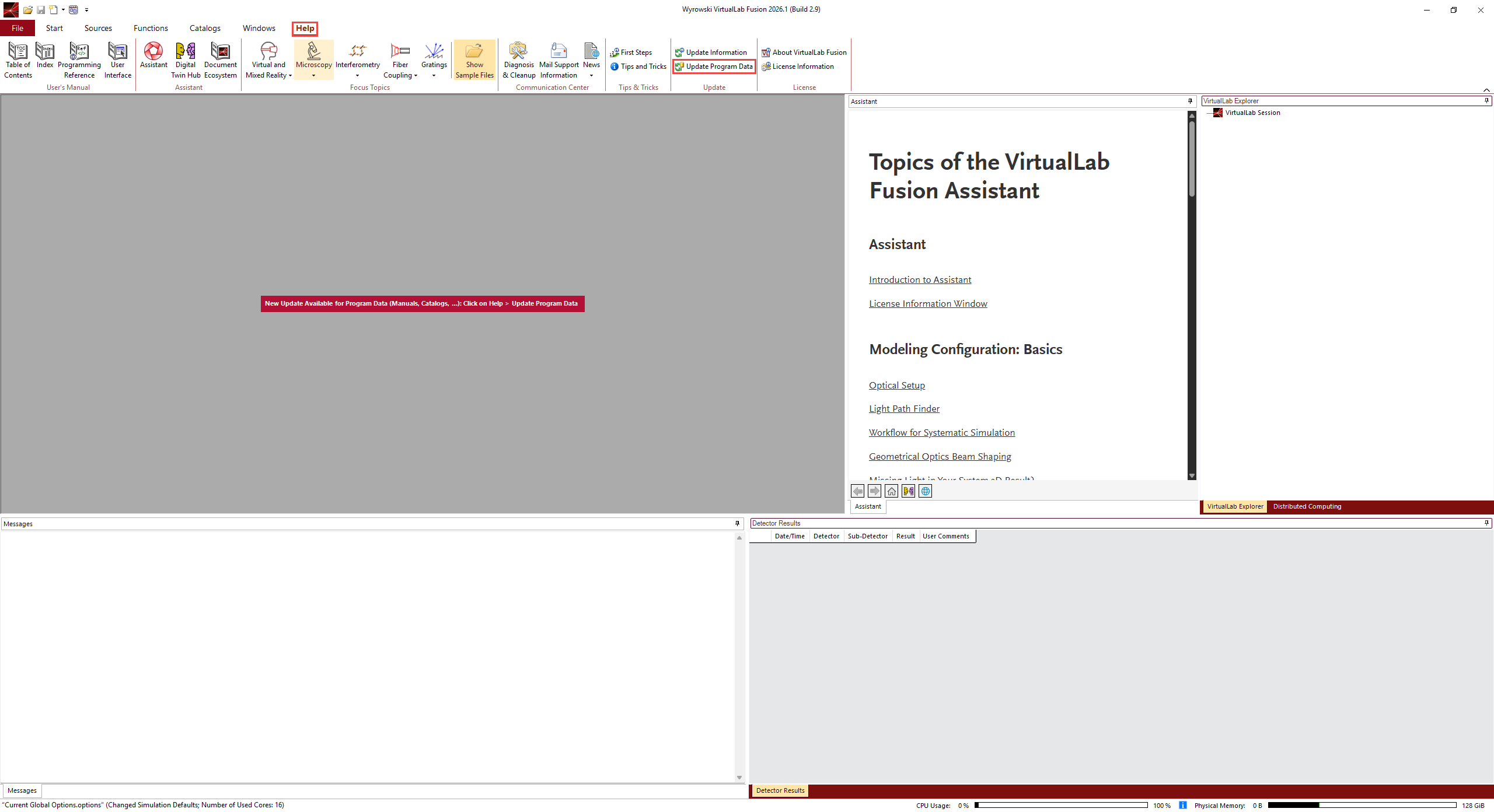
When a new version of the program data becomes available online, VirtualLab Fusion will notify you at startup. The notification appears in the Main Window.
To perform an automatic update:
- Launch VirtualLab Fusion
- If a notification about new program data appears, proceed with the update:
- Navigate to the Help tab in the ribbon
- Click Update Program Data
- VirtualLab Fusion will:
- Connect to the update server
- Download new program data from the Internet
- Automatically store the data in the correct local folder
- Wait for the download and installation to complete
Monitoring the update process:
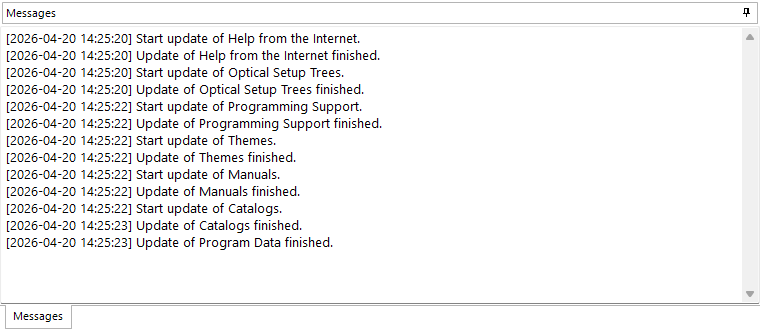
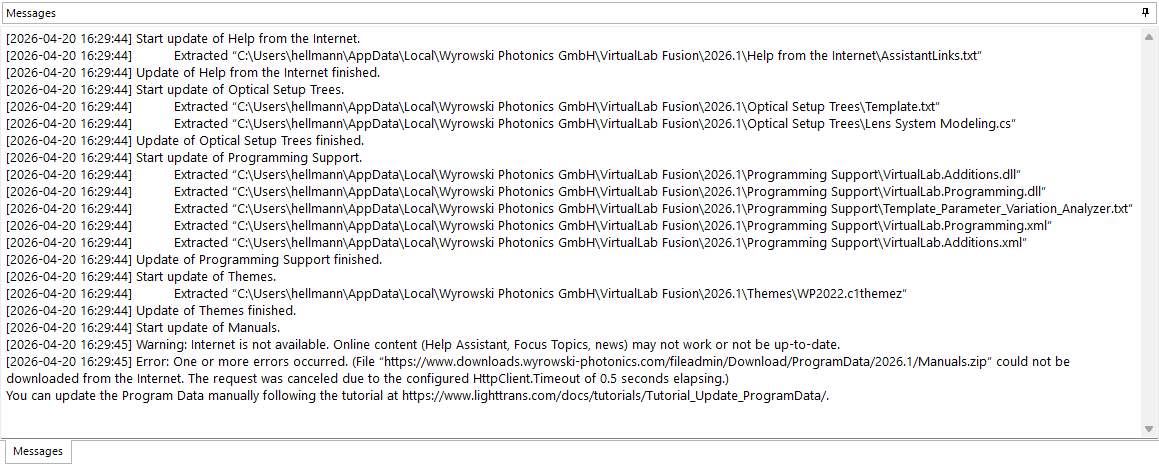
The Message tab provides detailed logging of the entire update process, including:
-
Progress indicators for each download
-
Confirmation of successful installation
-
Any errors encountered (with suggested solutions)
Once the update completes, you can immediately use the updated program data. No restart is required in most cases, though a restart is recommended if you encounter any unexpected behavior.
Step 2: Enforced Update (Force Refresh)
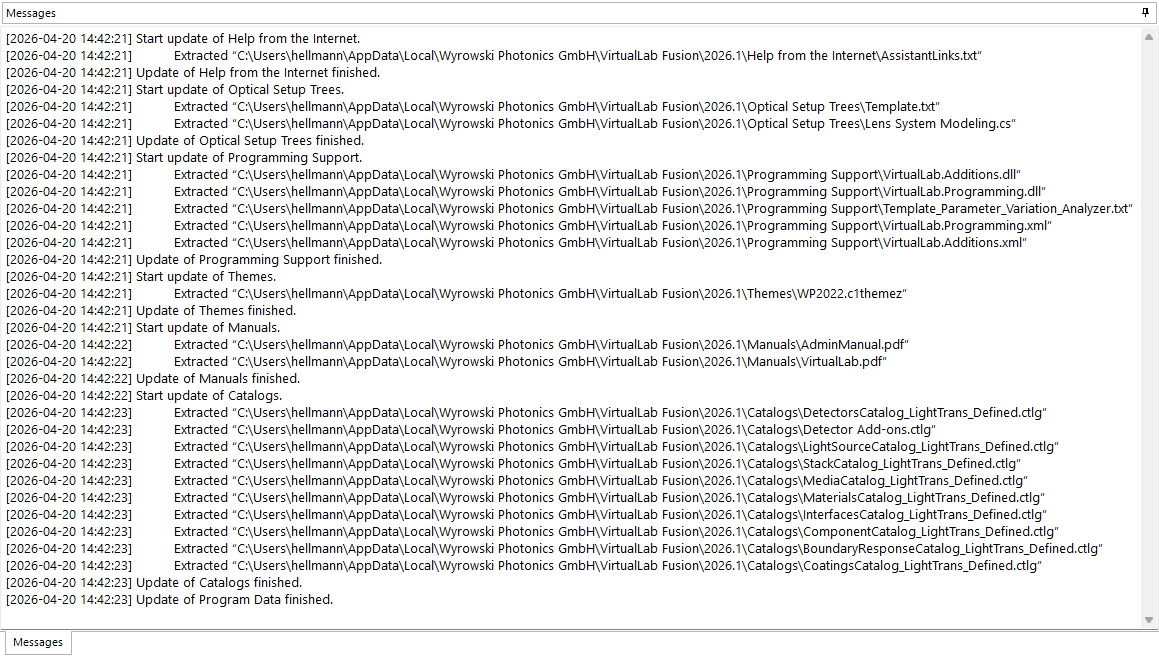
In some situations, you may want to force a complete refresh of all program data – for example, if you suspect corrupted local files. The enforced update option downloads the entire program data set again, regardless of whether your local version appears current. This option also provides a more detailed logging including all extracted files and where they are stored.
To enforce an update:
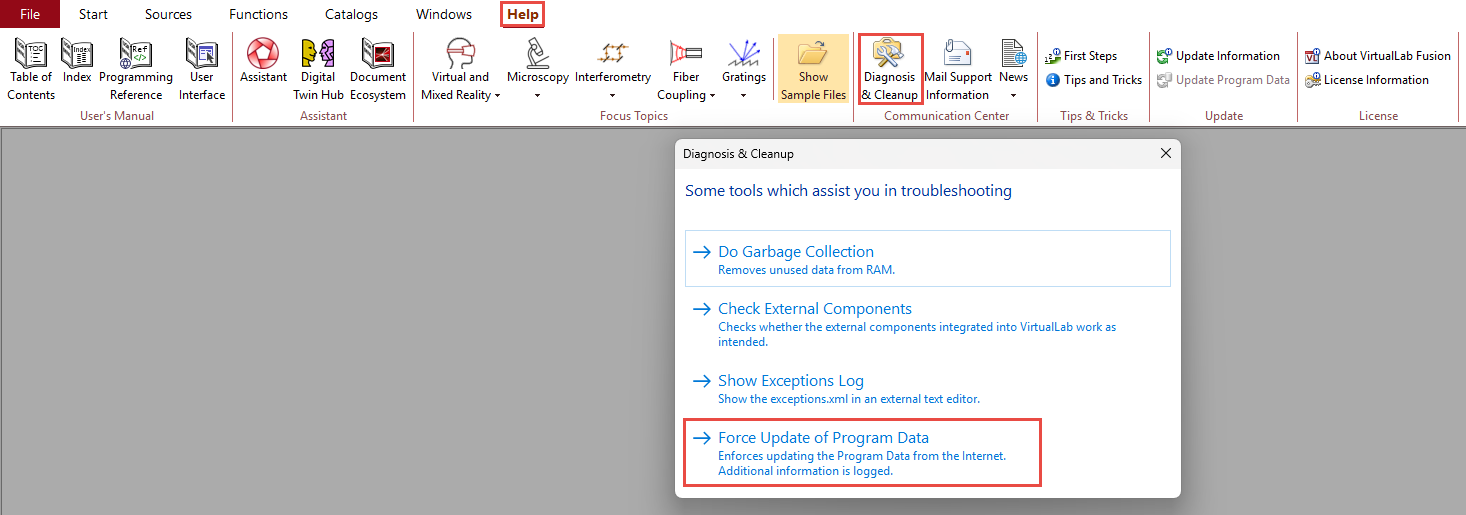
- Navigate to the Help tab in the ribbon
- Click Diagnosis & Cleanup
- In the dialog that opens, locate and click the button Enforce Update of Program Data
- VirtualLab Fusion will download the complete program data package from the Internet and overwrite the existing local data
- Monitor the Message tab for progress and completion status
This method is useful when:
-
The automatic update appears stuck or incomplete
-
You experience errors related to missing or corrupted catalog entries
-
You want to ensure a clean baseline after troubleshooting
Step 3: Manual Update (Offline / No Internet Connection)
If the computer running VirtualLab Fusion has no Internet connection, or if the automatic update repeatedly fails due to network issues (slow connection, firewall restrictions, proxy servers), you can perform the update manually using a computer that does have Internet access.
⚠️ Important: Before starting the manual update, close all VirtualLab Fusion instances completely to ensure no files are locked or in use.
Prerequisites
- A computer with Internet access (any operating system)
- Sufficient storage space for the downloaded zip files
- Access to the target computer's user folder structure (e.g., via USB drive or network share)
Step 3.1: Download the Program Data Packages
On the computer with Internet access, download the required zip files. The download links are version-specific – ensure you download the packages matching your VirtualLab Fusion version.
For VirtualLab Fusion 2026.1 (current version):
| Package Name | Description |
|---|---|
| changes.txt | Logfile for changes of the program data |
| Optical Setup Trees.zip | Predefined tree structures for optical setups |
| Themes.zip | UI themes for the VirtualLab Fusion user interface |
| Programming Support.zip | External DLLs for custom extensions and snippet development |
| Catalogs.zip | Catalogs of system building blocks and Digital Twin definitions |
| Manuals.zip | User manual and documentation |
📌 Note:
changes.txtis a plain text file and does not need to be unpacked. Simply copy it to the target folder along with the zip files.
Step 3.2: Locate the Target Folder on the Offline Computer
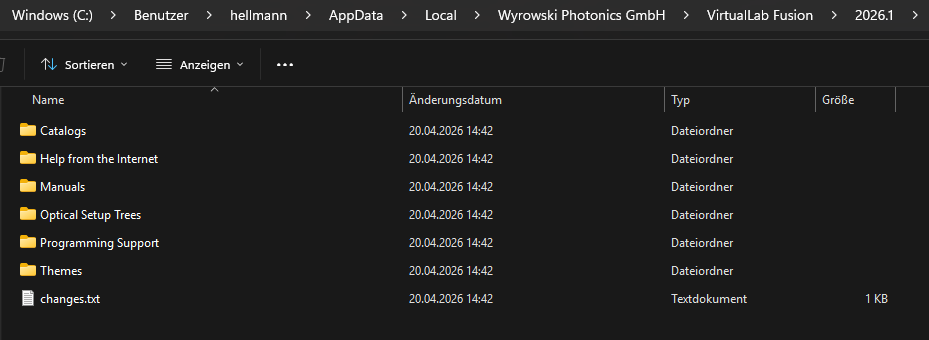
On the computer where VirtualLab Fusion is installed, navigate to the following folder:
C:\Users\[UserName]\AppData\Local\Wyrowski Photonics GmbH\VirtualLab Fusion\2026.1
Important notes:
-
[UserName]must be replaced with the actual Windows username of the account that runs VirtualLab Fusion -
AppDatais a hidden folder by default. To access it:-
Press
Windows + R, type%localappdata%\Wyrowski Photonics GmbH\VirtualLab Fusion\2026.1, and press Enter, OR -
In File Explorer, type
%localappdata%\Wyrowski Photonics GmbH\VirtualLab Fusion\2026.1directly into the address bar
-
-
The version number in the path (e.g.,
2026.1) must match the version of your VirtualLab Fusion installation
Step 3.3: Unpack and Install the Program Data
- Transfer the downloaded zip files to the offline computer (e.g., via USB drive)
- Unpack each zip file directly into the target folder
- Ensure that the folder structure inside each zip file is preserved during extraction
- If prompted about overwriting existing files, select "Yes to All" (this ensures all files are updated)
- Verify that the extracted contents are now present in the target folder
Step 3.4: Restart VirtualLab Fusion
- Close VirtualLab Fusion completely if it is running (it should already be closed from the warning above)
- Restart VirtualLab Fusion
- Verify that the program data is up to date:
- Check the Catalogs in the Digital Twin Hub – they should reflect the latest available entries (only works if you have an internet connection)
- Optionally, open the Message tab to see if any data loading errors occur (none should appear with a successful manual update)
✅ Success indicator: After restarting, you should be able to access all Digital Twins.
Tags: program updates catalogs manual automatic VirtualLab Fusion